.svg)


I've seen a few articles warning parents (and IECs) away from AI-generated college lists. And if you're just asking ChatGPT for a list with a 2-3 sentence prompt and calling it done, that's valid criticism. But that's not what I'm doing.
Can you use AI in silly, unhelpful ways that generate silly, unhelpful lists? Yes! Can you use it thoughtfully to generate useful lists that you use as a starting point? Also yes. I'm going to walk you through my process with Claude, my AI of choice.
I'm using the word 'inform' intentionally. The work I'm doing with Claude isn't replacing me or my thought process, getting to know my student, or available data. It is another tool that I'm using and honestly, it's been pretty awesome for doing what I've been referring to as being a ‘dynamic spreadsheet generator’.
Claude has a feature called 'Projects.' I create a project for each student. (Of course, getting the family's permission and, if requested, de-identifying things like transcripts before uploading.) Let's call the student I'm doing this for, 'Nick.'
First, you'll want to set your project instructions. This is where you tell Claude its purpose in the context of this project. Since I do more than just list-building in a student's project, I keep mine fairly general:
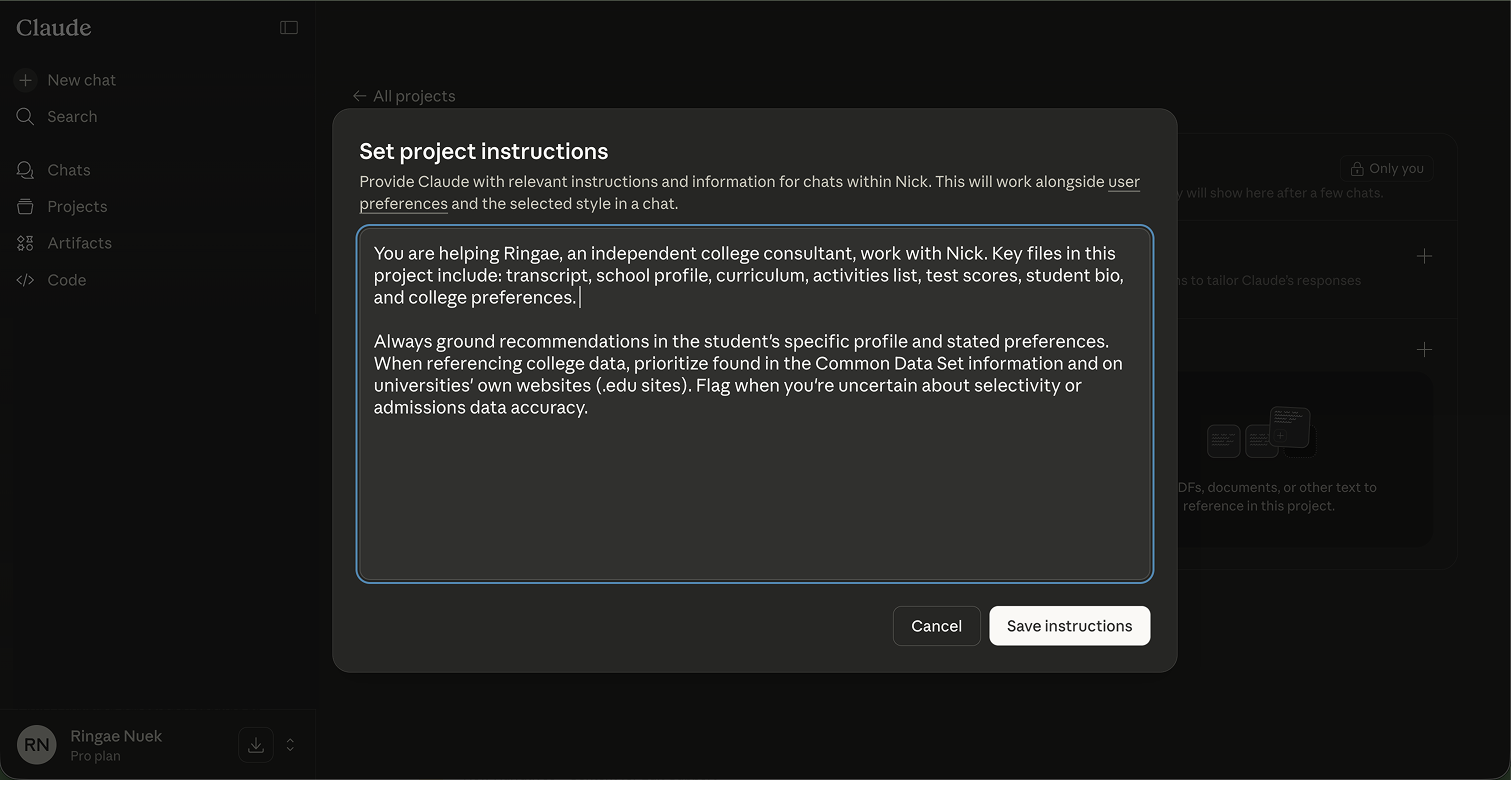
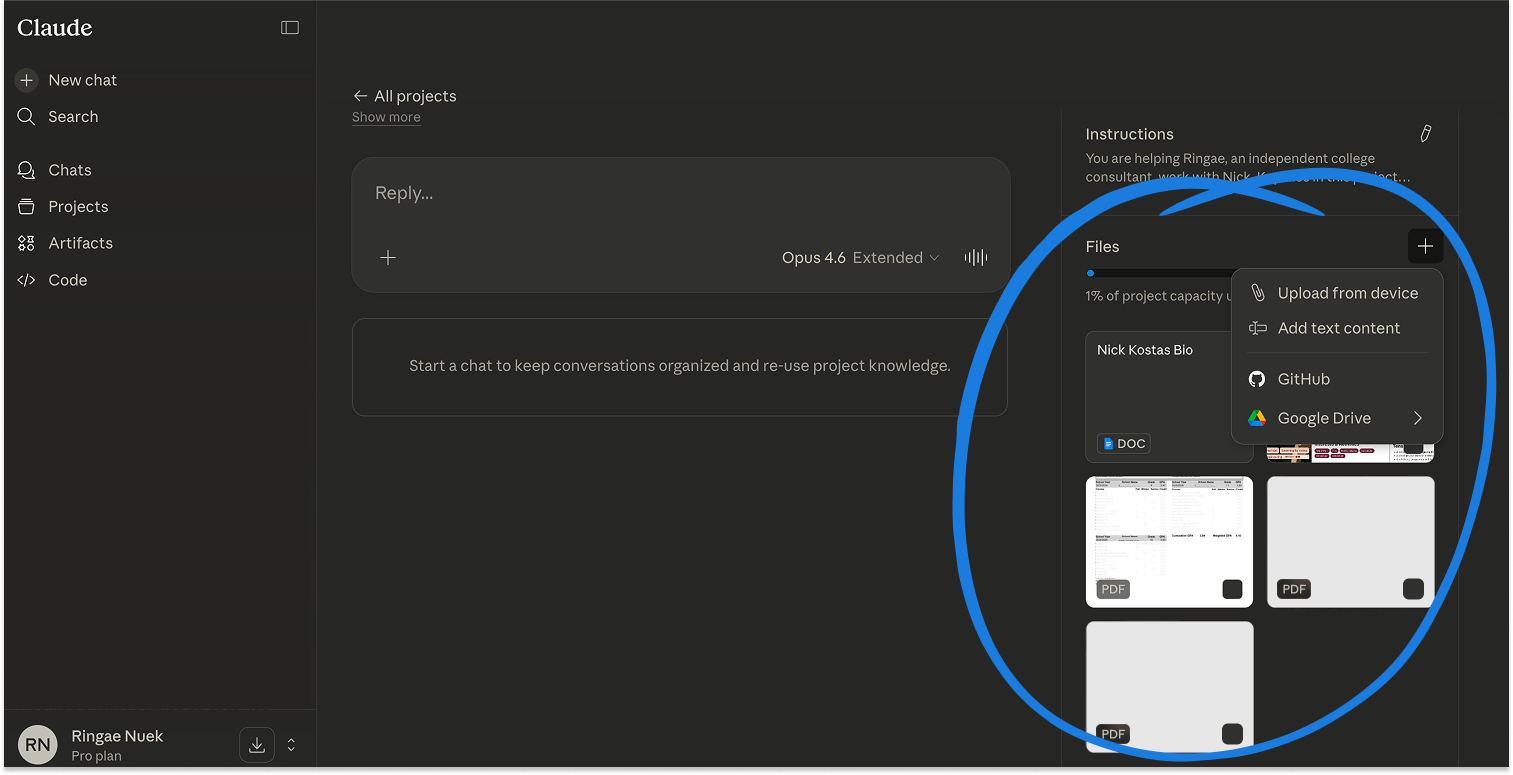
Next, I upload relevant files. Once the files are uploaded, when you chat with Claude within that project, it can access those files as part of its context. I'll upload:
If you don't already have a student bio document like this, just write up a few paragraphs covering the family’s background, the student's academic profile, what they're looking for in a college, and any financial constraints. Upload that into your project files. The more specific you are here, particularly with college preferences, the better attuned your list will be to your student. And, as preferences or circumstances evolve, it's easy to swap out this document for an updated version.
In my mock student, Nick's profile, I included his desire for an urban campus, interdisciplinary learning, ideal size and 'vibe', his in-state California resident status, the family's financial constraints, and many more details. All told, it's about 1 1/2 pages long. I also noted his GPA, approximate placement in his class and his SAT score.
Once you've uploaded the files into the project folder, it should look something like this:
Now we're ready to start generating lists. I've written a detailed prompt that I use for this purpose. I'll keep it as a file in the project so I can reference it easily, but you could also just paste it into the chat when you're ready to generate.
The prompt is long — intentionally so. The specificity is what makes the output actually useful rather than generic. It tells Claude what files to reference, how to categorize selectivity, what columns to include with what field types, and how to format the spreadsheet. I might adjust selectivity definitions to align with the student, for example entirely removing the ‘Wild Card’ category if it doesn’t make sense. Here's my prompt — feel free to adapt it:
Generate an initial college list for the student in this project, outputted as a formatted .xlsx spreadsheet file. The list should reflect the student's academic profile, preferences, and financial situation as described in the project files.
Reference whatever subset of these files is available: Student Bio, Transcript, School Profile, Curriculum Guide, Activities List, Test Scores.
Number of schools: 15-25 colleges that meet most of the student's stated criteria, including a range of selectivity levels. Aim for roughly 3-4 Wild Cards, 5-7 Reaches, 6-10 Targets, and 4-5 Likelies. Adjust this distribution based on the student's profile. Remove Wild Card altogether if the profile does not warrant inclusion.
Selectivity definitions:
Wild Card: <10% admit rateReach: 10–25% admit rateTarget: 26–60% admit rateLikely: >60% admit rateUse out-of-state rates for public universities when the student is out-of-state. Flag in a Notes column if a school's selectivity for the student's intended major differs significantly from the overall rate.
Region definitions:
Northeast: Maine, New Hampshire, Vermont, Massachusetts, Rhode Island, ConnecticutMidAtlantic: New York, New Jersey, Pennsylvania, Delaware, Maryland, Washington DCSouth: Virginia, West Virginia, North Carolina, South Carolina, Georgia, Florida, Kentucky, Tennessee, Alabama, Mississippi, Louisiana, ArkansasSouthwest: Texas, Oklahoma, Arizona, New MexicoMidwest: Ohio, Indiana, Illinois, Michigan, Wisconsin, Minnesota, Iowa, Missouri, Kansas, Nebraska, South Dakota, North DakotaMountain West: Colorado, Wyoming, Montana, Idaho, Utah, WyomingWest: California, Oregon, Washington, Nevada, Hawaii, AlaskaColumns (in order):
College (text)Selectivity (single-select: Wild Card / Reach / Target / Likely)Median SAT, ACT; Admit Rate (text, formatted as 1530/35/5%)Type (single-select: Research University / State School / Eng School / Liberal Arts College)Region (single-select: Northeast / MidAtlantic / South / Southwest / Midwest / Mountain West / West)Setting (single-select: Urban / Suburban / Town / Rural)URL (the school's main admissions page)M%:F% (text, e.g., 49%:51%)Demonstrated Interest (checkbox — TRUE if the school considers it, blank if not)Decision Types (multi-select, comma-separated: ED, EDII, EA, EAII, Rolling)Big ED Advantage (checkbox — TRUE if ED acceptance rate is significantly higher, blank if not)Significant % Get Merit (checkbox — TRUE if a meaningful percentage of students receive merit aid, blank if not)Cost to Attend/Yr (currency, approximate full cost of attendance)Getting Home (single-select: Easy / Driving Distance / Medium / Difficult. Driving Distance = 8hr drive or less. Easy = direct flight + less than 1hr drive to the airport. Medium = direct flight + more than 1hr drive to the airport. Difficult = requires a stopover and/or more than 2hr drive to the originating airport.)Admits to (single-select: College / School/Division / Major)Summary (leave blank — to be co-created later)Noteworthy (leave blank — to be co-created later)Wants to see (leave blank — to be co-created later)Learn more (leave blank — to be co-created later)Favorite (checkbox, leave blank)Spreadsheet formatting:
Color-code rows by selectivity: red-tinted for Wild Cards, orange-tinted for Reaches, yellow-tinted for Targets, green-tinted for LikeliesFreeze the header row and the first column (College name)Enable auto-filter on all columnsSort schools by selectivity tier (Wild Cards first, then Reaches, Targets, Likelies)Use consistent values for all single-select and multi-select fields so they import cleanly into Airtable
That's the whole prompt. You'll notice I'm very specific about field types (single-select vs. multi-select vs. checkbox vs. text) — that's because I eventually import this into Airtable, and consistent values mean clean imports, minimizing manual cleanup. And remember, you can update this prompt per student. I've refined and changed this many times.
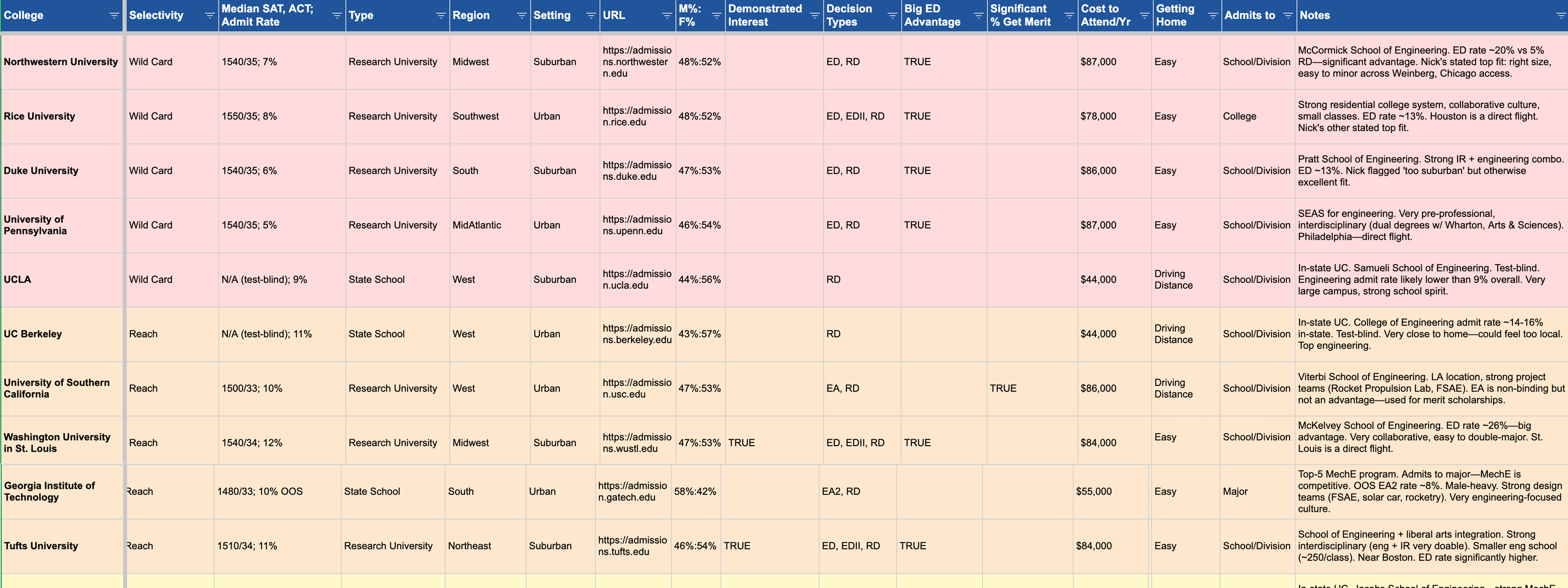
Here's what Claude has to say about the list:
Key design choices for Nick's profile:
The list leans into his stated preferences: mid-sized R1s in or near vibrant cities, MechE programs, interdisciplinary flexibility, collaborative culture, and direct-flight accessibility from SFO.
Things to flag for discussion:
Not a bad start!
This is where it gets really useful. As Nick's preferences change or new information emerges, I can dynamically update the spreadsheet through conversation.
Adding a new column: For example, Nick is interested in Mechanical Engineering, and how schools handle engineering admission matters a lot for his application strategy. Some schools admit you directly to your major as a freshman. Others admit you to the engineering college and you place into a major later. Others have a competitive first-year engineering program where you have to earn your way into your preferred major based on GPA.
So I asked Claude to research the engineering admission models for every school on Nick's list. We discussed the categories, settled on four (Direct to Major, Direct to Eng School, FYE / Competitive, and University-wide), and Claude populated a new "Eng Admit Model" column across all the schools.
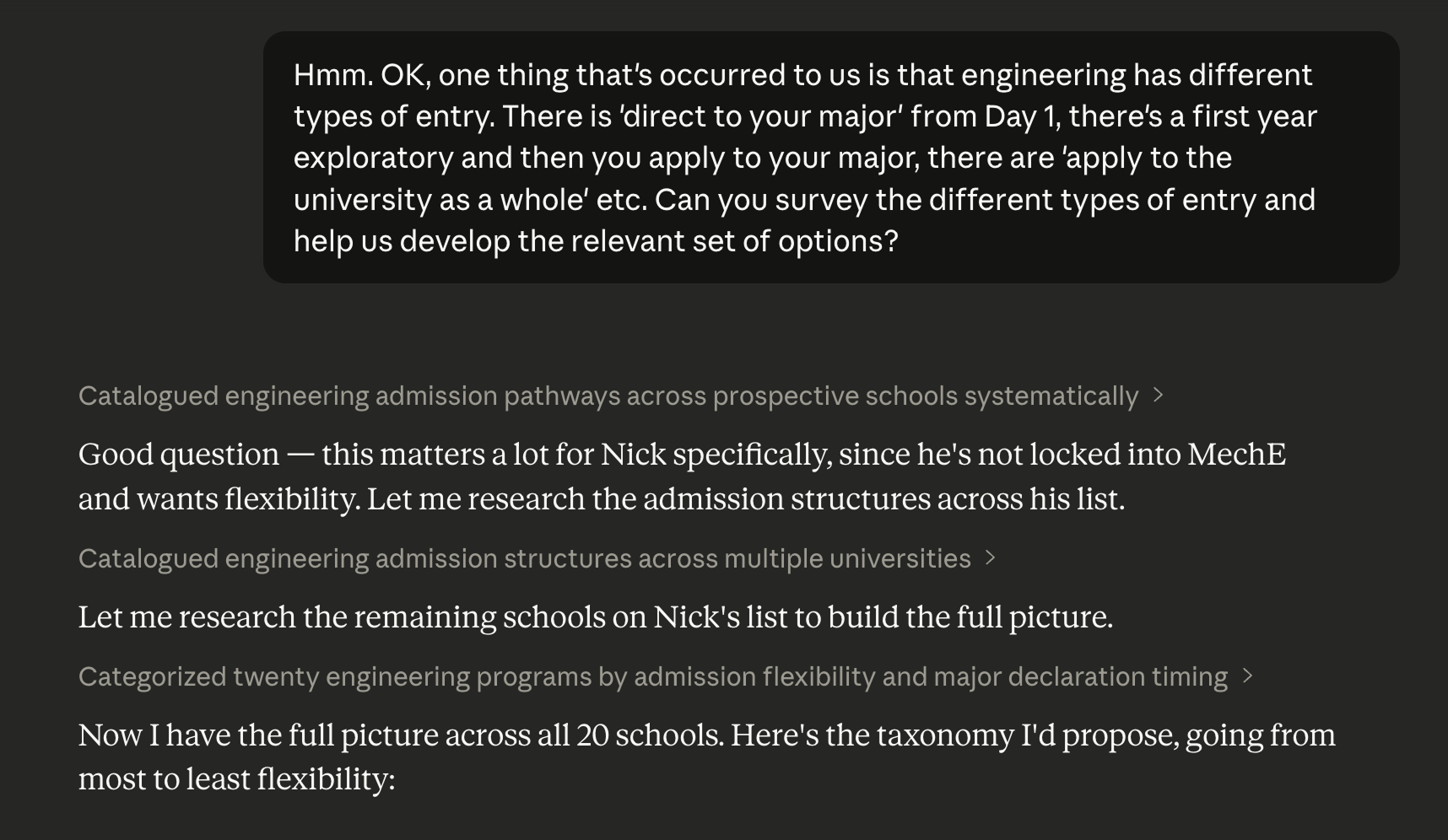
And Claude follows up with an updated spreadsheet:
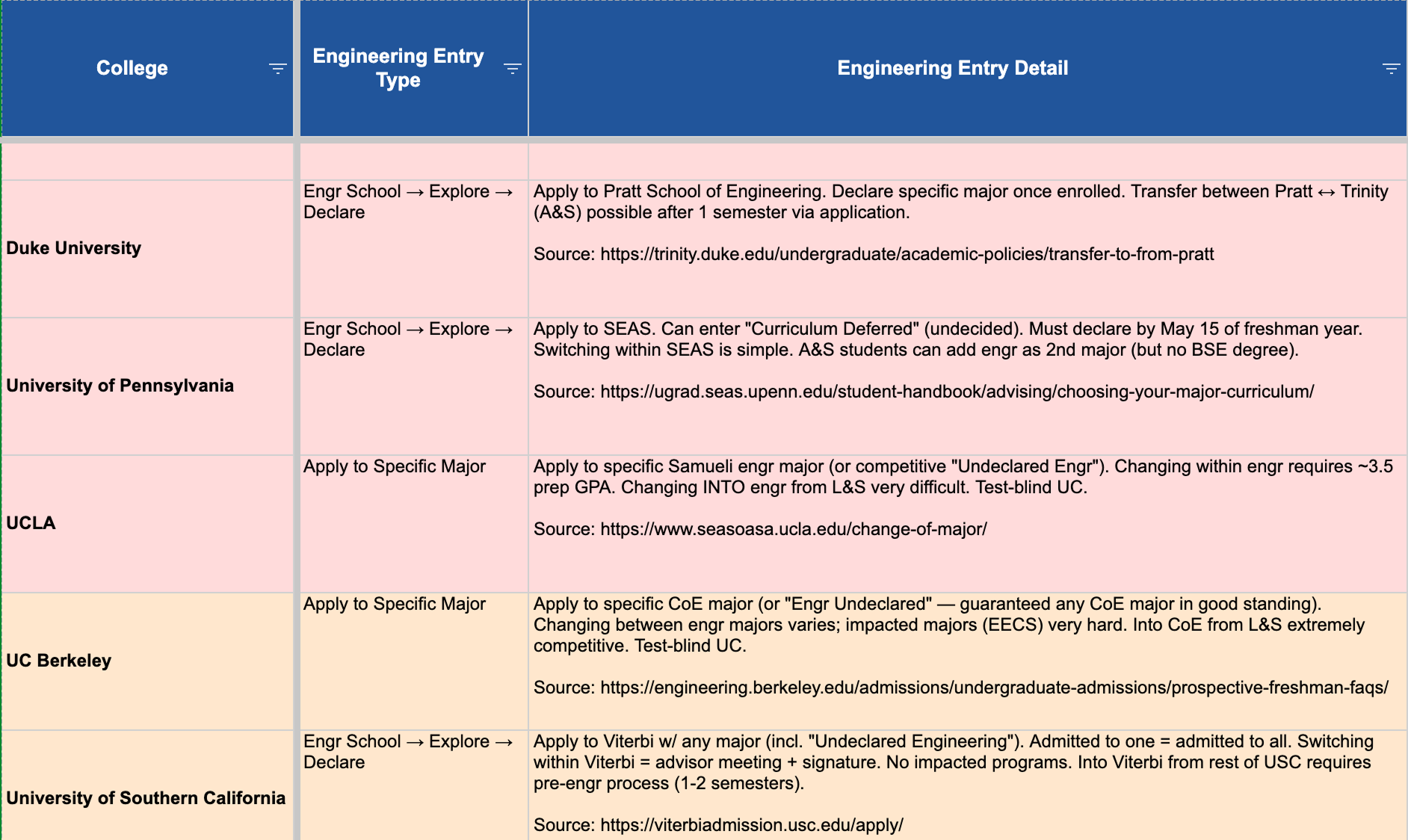
That's the kind of column that would take me some time to research manually. Claude did the initial research in minutes. I’ve got the URLs (again, pulled by Claude), so I can verify this information with less work.
Updating based on changed preferences: Let's say Nick decides at some point that ease of access to home is more important than he initially thought. I can tell Claude: "Nick wants to be within a direct flight of San Francisco with no more than a 1-hour drive to the airport. Update the 'Getting Home' column and flag any schools that no longer meet this criterion." Claude updates the spreadsheet and I can see immediately which schools might need to come off the list.
Swapping schools: When I decided to remove a school because it was too rural for Nick, I just said so in conversation. Claude removed it and I asked for alternatives. We discussed a few options, I picked three, and Claude added them to the spreadsheet with all the same columns populated.
What's really cool about all of this is the dynamic spreadsheet updating. The ability to easily add and populate the data in a column across an existing spreadsheet is alone a huge timesaver.
Once we have a working list of schools, I ask Claude to help me find the most recent Common Data Set files for these schools. In my experience, Claude finds direct links for most of them, leaving me to do the legwork for the remaining ~20%.
Rather than having Claude try to download the files (mixed results), I have it add a "CDS Link" column to the spreadsheet with clickable URLs pointing to each school's CDS page. This makes it easy for me to download them myself and then upload them into the project.
Once I've gathered the CDS files and added them to the project, I can ask Claude to verify and update specific columns using the actual CDS data — things like Demonstrated Interest (CDS Section C7), merit aid availability (Section H), admit rates, and test score medians.
One caveat here: I've noticed that Claude struggles with accuracy when pulling information from CDS tables, especially longer or more complex ones. So I do check answers against the actual documents, especially when they’re important, but it’s still quite a time saver.
In fact, going forward, I would add this to my original prompt so that it's another column in my spreadsheet from the start: 21. CDS Link (URL — link to the school's most recent Common Data Set file or landing page. Prefer direct PDF links to the 2024-25 CDS where available; use the school's CDS landing page otherwise.)
Once I'm happy with the list — or at least happy enough to start working with it more seriously — I move it out of the spreadsheet and into Airtable, which is where I do most of my ongoing list management.
The import is straightforward: I open the .xlsx file Claude generated, copy the data, and paste it into an Airtable base. From there I set each column to its proper field type — single-select for things like Selectivity and Getting Home, multi-select for Decision Types and Noteworthy, checkboxes for Demonstrated Interest and Big ED Advantage, currency for Cost to Attend, and so on. Because I've been deliberate about keeping the data values consistent (always "Wild Card" not sometimes "Wildcard," always "ED, EA" not "Early Decision, Early Action"), Airtable parses everything cleanly and the tags just work.
This is where the list really comes alive. In Airtable I can filter and sort in ways that matter for counseling conversations — show me all targets and likelies under $60K, show me every school that considers demonstrated interest, show me only schools where he's admitted university-wide rather than to a specific major. I can add views for different purposes: one for the family presentation, one for my own working notes, one focused on the financial picture.
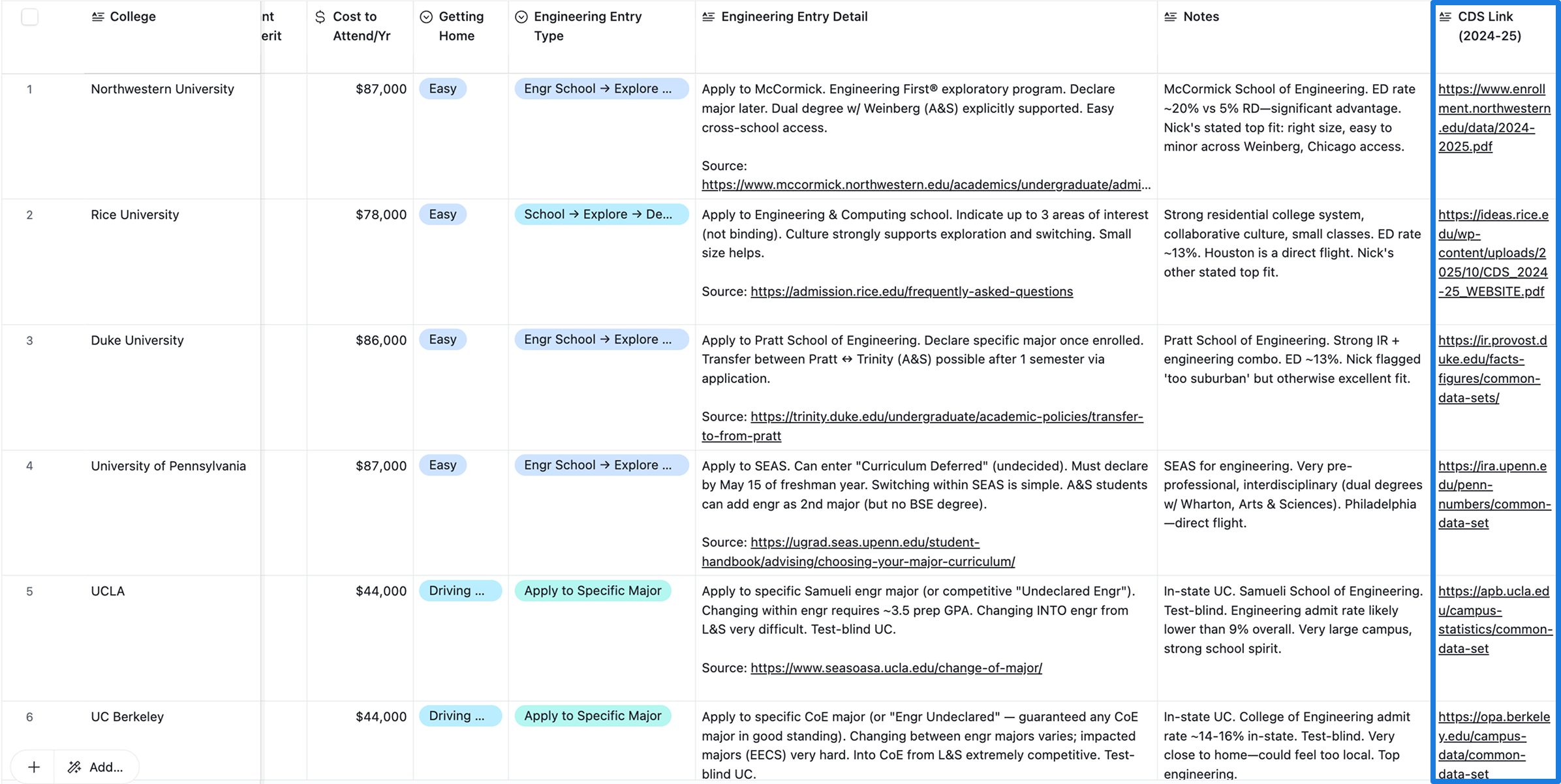
I continue to go back and forth between Claude and Airtable as the list evolves. When I need a new column researched and populated, I'll ask Claude to update the spreadsheet, then copy the new column into Airtable. It's a manual handoff, but it's quick and it keeps Airtable as my single source of truth while using Claude as the research engine.
This takes awhile. I wish Claude made Airtable spreadsheets.
A few things to keep in mind if you try this approach:
Claude is not a replacement for your expertise. It's a research accelerator and a spreadsheet generator. The judgment calls — whether a school truly fits a student, how to categorize selectivity given a student's specific profile, whether cultural factors align — those are yours to make.
Always verify the data. Admit rates, costs, test score medians, and policies change yearly. Claude is working from its training data and general knowledge, which may be outdated or imprecise. Use the CDS files and school websites to confirm everything before sharing a list with a family.
Selectivity labels need human review. As I mentioned, Claude's reach/target/likely classifications are rough approximations and are not the best. Program-specific admit rates, in-state vs. out-of-state status, and holistic factors all affect how realistic a school is for a given student and all of that requires human judgement.
Be thoughtful about student data. Get the family's permission before uploading any student information, and de-identify documents if requested. Claude Projects data is used in accordance with Anthropic's privacy policies, but you should still follow your own ethical guidelines around student confidentiality.
Upload your thinking. Your 'Student Bio' document will make or break your list, so be thoughtful and thorough when you create it. And don't forget to update it as things change.
I'm excited to figure out how to refine this workflow with Claude Cowork. For college list building, Cowork could eventually mean pointing Claude at a local folder full of student files and CDS documents and having it work more autonomously — updating spreadsheets in place, cross-referencing multiple CDS files, even potentially working directly with tools like Airtable through connectors. Right now, moving the spreadsheet over to Airtable is a little clunky and you lose the ability to update on the fly.